Settings
One menu for every switch: bars, sounds, broadcasts, and who can reach you.
/settings opens one place to change how the server behaves for you. Nothing in it affects anyone else, and nothing in it changes the grind: it is about noise, screen space and who is allowed to interrupt you.
Aliases: /options, /prefs, /preferences.
#How the menu works
The categories are a row of icons along the top (on the Large menu size, a list down the left with their names). Click one and its settings fill the panel below, each with a control at the right showing where it stands: a switch for the ones that are on or off, a button per option when there are three or fewer, and the current option between ◀ and ▶ when there are more. Hover over any setting to read what it does.
- Click a setting
- Turn it on or off, or step to the next option.
- An option's button
- Pick that option.
- ◀ and ▶ beside an option
- Step back or forward.
- Reset
- In the panel's header, puts this category back to how it started.
- The red bin
- At the top right (under the list on Large), resets every category.
Most settings are on or off. A few have more than two states, and hovering over one lists every option with the active one marked, so you can see where a click will take you before you make it.
Your choices follow you everywhere. Change something on one server and it is already changed when you arrive on the next.
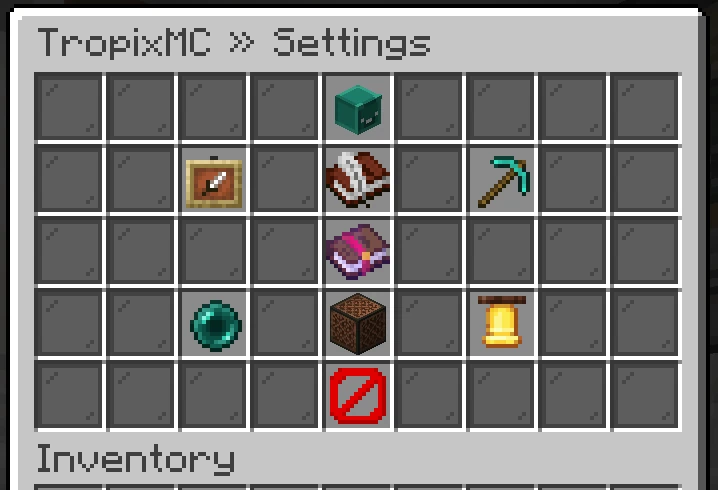
#Menu size
The drawn menus (/settings, /missions, /gang and /skills) come in three sizes, and you pick the one that fits your screen. The first time you open one of them it asks, showing each size to scale with the screens it suits. With the server's resource pack on, a green tick marks the biggest size that fits your screen as it is set right now. Your pick covers all four menus.
Small fits any widescreen at the default Auto GUI scale. Medium needs a 1080p screen at Auto, and Large needs a tall GUI, like 4K at GUI scale 4 or 1080p at GUI scale 2. A bigger size shows more on each page: more settings, mission cards and gang members before you turn the page, and a bigger skill tree. On a square 4:3 screen even Small is too wide at Auto: set your GUI scale one step lower.
Change your GUI scale or resize the window later and a mark shows in the top right corner of any of those menus: ⚠ when the menu no longer fits, ↑ when a bigger size would. Click it to pick again, or use Menu Size in Display (/settings display.menu-size).
With the resource pack on, the drawn menus move a little: the open tab glows and bars that are still filling shine. Menu Animation in Display (/settings display.menu-animation) turns that off. After you change something, buy something or claim something in one of these menus, a line at the top of the menu says what happened, in place of a chat message. Hover over it to read the whole line.
#Searching
Search, the magnifier at the top right (the search field above the list on Large), finds a setting when you do not know which category it is in. Type a word or two and every setting with all of those words in its name or description shows up on one page, in any order and in any case. Name matches come first. Each result works right there: flip it, step it, or open it, and the results stay on screen. Hover over one to see which category it lives in.
Enchants show up by name: search flame and Flamethrower appears, and clicking it opens its switches. Each enchant's own switches stay on its page, so a word like sound lists the sound settings and leaves the enchants out.
If nothing matches, the search box comes back with your words still in it. New search in the results' header does the same. /settings search crate sound searches straight from chat.
#Jumping straight to one
Typing a category opens it directly, so /settings chat skips the first screen. Typing a setting's own name goes further: /settings requests.teleport opens the screen that setting is on and marks it, which saves hunting for it. Tab completion offers every category and every setting name.
#What you can change
#Display
Everything drawn over the world, in two groups.
The bars first: the sidebar and the chat it names on its last line, the collection bar that appears while you grind, the mine's stage bar, the Farm Level bar while you harvest, the countdown on each booster you have running, and the queue line while a mine rebuilds.
Then the small text at the bottom of your screen. Autosell's running total, the popups when an enchant fires, and the area notices telling you that you cannot build here or that you have reached the edge. Every one of those is a readout: turning it off hides the words and changes nothing else. The money still lands, the enchant still fires, and the block you cannot break still will not break.
This is also where the rank perks live: fixing the sky or the weather for yourself, changing your size, and hiding other players so you can grind alone. Those show as locked until the rank that includes them is yours, so you can see what a rank adds before buying it.
Island perks add four of their own: the Crop Radar counts while you sneak with a hoe, the bars counting down a running island ability, the rain a Rain Dance brings, and the time of day an island's Sky shows. The rain and the sky only change your own view, and the crops on the island grow the same either way. Mine perks add three: Survey's readout while you sneak with a pickaxe, the bars counting down a running mine ability, and the time of day a mine's Sky shows.
#Chat
What reaches your chat box.
Public chat has its own switch that hides all of it at once. Direct messages, gang chat and staff replies are not on it, so nobody can lose the ability to be spoken to by turning down the noise.
Then the finer ones: whether the word filter censors messages you read, your gang's own news, your booster messages, the notices when somebody buys from your player shop, the line telling you which season prizes you won, and the one telling you what you won in the Weekly Payouts. Turning either off drops the words only, in chat, in the login panel and as a toast. The prizes are in your case and the Doubloons in your balance either way.
Login Panel is the block that greets you when you join, listing what is waiting for you. Off drops the whole panel. Every row in it also has its own switch here, so you can lose one row and keep the rest: missions, today's daily square, crate claims, the two voting rows, season prizes and weekly payouts (each the same switch as its line above).
Server Tips is the tip the server posts in chat every fifteen minutes. It sits apart from public chat on purpose: one is the server talking and the other is everyone else, so turning the crowd down leaves the server news where it was.
Animated Colours decides whether prismatic chat colours move as you read them. They are drawn by your own computer, letter by letter, so a long message in one can cost you frames on an older graphics card. Off shows them as a single plain colour instead. It changes only what you see: your own prismatic keeps moving for everybody else, and nothing about the cosmetic is lost.
Report Outcomes is here too: the message telling you what staff did with a player you reported. Off hides that message only. Filing a report still confirms it worked, so nothing you send disappears silently.
Chat games get two switches rather than one. The alert is the round itself, the word or question to answer; the result is who won and what the answer was. Split like that, you can stop being handed puzzles and still see who is winning them.
The filter is the one setting with a requirement attached: changing it needs a linked Discord account. Until you link, the row shows as locked and says so.
Pond Currents is the line you get when a current forms on the pond you are standing in. It has a chime to match, switched separately under Sounds and effects.
Gang news covers joins, leaves, rank changes and your mine resetting. Gang chat itself is never hidden, and neither is your gang disbanding. Your gang's Farm Level lines have a switch of their own, since the early levels come quickly, and so do its island perk and mine perk lines, when someone places, merges or fires a perk. A perk being taken off the island or out of the mine always shows, since it explains why a boost stopped.
The ignore list is a full screen rather than a note: it shows everyone you ignore as a head, one click stops ignoring someone, and a button lets you add somebody by name. /ignore and /unignore still work exactly as before, and both doors lead to the same list.
Word Panel is the odd one out: it changes nothing in game. It decides whether the stats site shows your top words and phrases on your own profile. Off hides that panel from everyone who looks you up. The server-wide version of the panel names nobody, so your chat keeps counting toward it either way.
#Gameplay
Autosell for mining and fishing, whether /sellcrops also cashes in your seeds, the periodic summary of what your enchants did, how much of a crate opening you want to watch, whether /ci asks before emptying your inventory, whether your boats sail at their Speed perk or at vanilla speed (the same switch as in /boat), and whether /fastplace buys what a build is short of. Crates can play their full spin, a shorter one, or hand you the reward straight away.
Autosell shows as locked without the rank that sells it, since the setting only lets an owner turn it back off. Fastplace auto-buy is sold with a rank too, and starts off: Ask first shows the price in chat and waits for your click, while Buy and build starts straight away and tells you what it costs. See Fastplace.
Turning the /ci confirm off is the one setting here that can cost you something. It wipes on the spot after that.
#Enchants
Your three tools sit across the top of the category. Pick a tool for its enchants, then click an enchant for its switches. Each enchant in the list carries a tag saying where it stands: ALL ON, how many of its switches are off, ALL OFF, or the level you pinned it at. Hover over a tool to see how many of its enchants you have changed.
Switches, beside the tools, opens two settings that cover everything at once. One governs the popups an enchant fires the moment it lands, the other the periodic summary. Both are the same settings you would find in Display and Gameplay, put here so you do not have to go looking.
Under those are three buttons that reach every enchant on the tool at once: all popups, all sounds, all effects. Click one to turn that set on for every enchant, and click it again once they are all on to turn them all off. The Reset in the header covers that tool alone. There is no bulk button for whether an enchant works or what level it fires at, because those two change the grind rather than the noise.
Each enchant then has up to eight switches of its own:
- Enchant Active
- Whether it works at all. Off behaves exactly as though you never bought it.
- Enchant Level
- The level it fires at. Pin a lower one when you want a smaller effect.
- Proc Popup
- The line it writes the moment it fires. The reward still lands.
- Proc Sound
- The noise it makes when you fire it. Also the reward still lands.
- Nearby Proc Sound
- The same noise when somebody beside you fires it.
- Proc Effects
- The particles it draws when you fire it.
- Nearby Proc Effects
- The same particles when somebody beside you fires it.
- Summary Line
- Whether it gets a line in your enchant summary.
The words, the noise and the effects are deliberately separate. Several enchants say nothing at all and announce themselves with a sound only, so that sound is the whole thing you would want to turn off. Others write a line you may want to keep while the chime goes, or throw fire across a field you would rather watch in silence.
Four enchants draw anything: the Doppelganger, Flamethrower, Explosive and Lightning. Turning their effects off never hides what the enchant gave you. The clone still fishes, its bobber still sits on the water, and the blocks Explosive takes are still gone. Only the decoration goes.
An enchant only shows the switches it can use. One that fires silently has no popup row, one that draws nothing has no effects row, one nobody else can see or hear has no nearby rows, and the always-on ones that never fire, like Haste, have no summary row either.
#Pinning a level
Enchant Level is a dial rather than a switch. Click it, type the level you want that enchant to fire at, and it stays there. Leave the box empty, or click the ✘ beside a pinned level, to clear the pin and go back to the level you bought.
The pin is a ceiling. It holds through a current or an event that would otherwise push the enchant higher, and it never lifts one above what your tool carries. You cannot pin higher than the tool you have on you, and the row says what that tool has before you start typing.
It is there for the enchants that get harder to live with as they grow: a Laser cutting past the ore you came for, a Harvester taking the row you meant to leave, a Tiller or Planter covering more ground than the patch you are working, a Speed moving you faster than you want to move.
Pinning a level and turning an enchant off are the only two settings in the whole menu that change what happens rather than what you are told. Neither touches the levels you bought. Clear the pin or switch the enchant back on and it picks up exactly where it was.
#Requests
Who is allowed to interrupt you. Teleport requests, trade requests and gang invites each have their own switch, and so do auction alerts.
Turning one off means the request is refused rather than silently swallowed: whoever sent it is told you are not taking them right now, so nobody is left waiting on an answer. Staff can still reach you.
Auction alerts are the only one that is purely about being told. Your money and your items still arrive whether or not you want the message.
#Sounds and effects
Sounds first, each on its own switch: reward chimes, crate sounds, request pings, menu clicks, the daily login chime, the chime on a server announcement, the chime when a current forms on your pond, and the low buzz when something is refused.
Then the scenes things play when they go off near you. Fertilizer spreading over an island, a catalyst going into your hoe, a booster being activated, a forecast being read over a pond, a tide vial being poured, chum bombs landing, explosive coconuts, meteors falling, a skin ability erupting, and the cards somebody turns over when they open a booster pack.
Island perks have four: the puff over crops a Growth Pulse grew, the chime when an island ability starts (and Overtime's burst over what it ripened), an island's Ambience drifting around you, and the Harvest FX on each harvest. Mine perks have three: the chime when a mine ability starts, a mine's Ambience, and the Break FX on each swing.
Most of those come in pairs, so you can keep your own and drop everyone else's. Card reveals work the other way round: one switch decides whether people nearby can watch yours, the other hides theirs from you.
Also here: the particle effects of players visiting from another server, and the shine a daily login square gives as you claim it.
Turning a sound or a scene off never removes the message that came with it, and never changes what happened. You still see what you earned, you still see why something was refused, and the card is yours whether or not you watched it flip.
#Broadcasts
Server-wide announcements, each with its own switch so you can keep the ones you care about: events starting, rare currents settling on a pond, drop parties, big crate wins, crate events, cycling crates rolling a new lineup, staff handing everybody a crate key, other people's progress, top three season prize winners logging in, each week's Weekly Payouts podiums, network join and leave lines, store purchases and donation goals, gg waves, big buys out of the server shop, expensive auction listings selling, and a gang's invite to its island's Open House.
#Client
Only players on Lunar Client or Dawn see this category, and each of them only sees the rows their client can draw. On Lunar it holds the buttons beside your inventory, the on-screen timers, your gang's markers and pings, the gang name tags and gang chat button, the meteor beams, current beams and World Boss glow, the World Boss button, how chat games show up, and where each kind of alert shows up (chat, a toast, or both). On Dawn it holds the overlay and its balance panel, hiding the bars the overlay already shows, the scenes, the screen effects, the same timers, alerts and markers, and your Discord status. /client opens it directly.
The alert rows only choose where a line appears. Switching the line itself off in its usual category still turns it off everywhere, toast included.
#Resetting
Every category has a reset that puts its own settings back to how they started, and Reset all under the category list resets all of them. Both ask you to confirm first. A setting you have never touched is already at its starting value, so a reset only ever undoes your own changes.
#Next
- Chat Cosmetics, filters and the ignore list in full.
- Quality of life The commands these settings govern.
- Crates What the animation setting is skipping.
- Lunar Client What Lunar players get on top.
- Dawn Client What Dawn players get on top.